
Download MyFolders – Free, Secure, Lightweight Folder Management Tool for Windows
Looking for a simple yet powerful way to streamline your file management on Windows? MyFolders is a free, lightweight software tool designed to enhance your desktop experience by adding a smart "My Folders" option to your right-click menu. This intuitive extension allows you to quickly move or copy selected files to your frequently used folders with just one click.
Whether you're a digital photographer managing hundreds of images, a web designer organizing assets, or a student sorting research documents, MyFolders saves valuable time by eliminating repetitive navigation. The tool integrates seamlessly with your existing workflow, adding functionality without slowing down your system. With no installation bloat and a secure design, MyFolders is ideal for users who value speed, simplicity, and efficiency.
Download now and transform the way you handle file transfers on your Windows PC.
Key Features of MyFolders
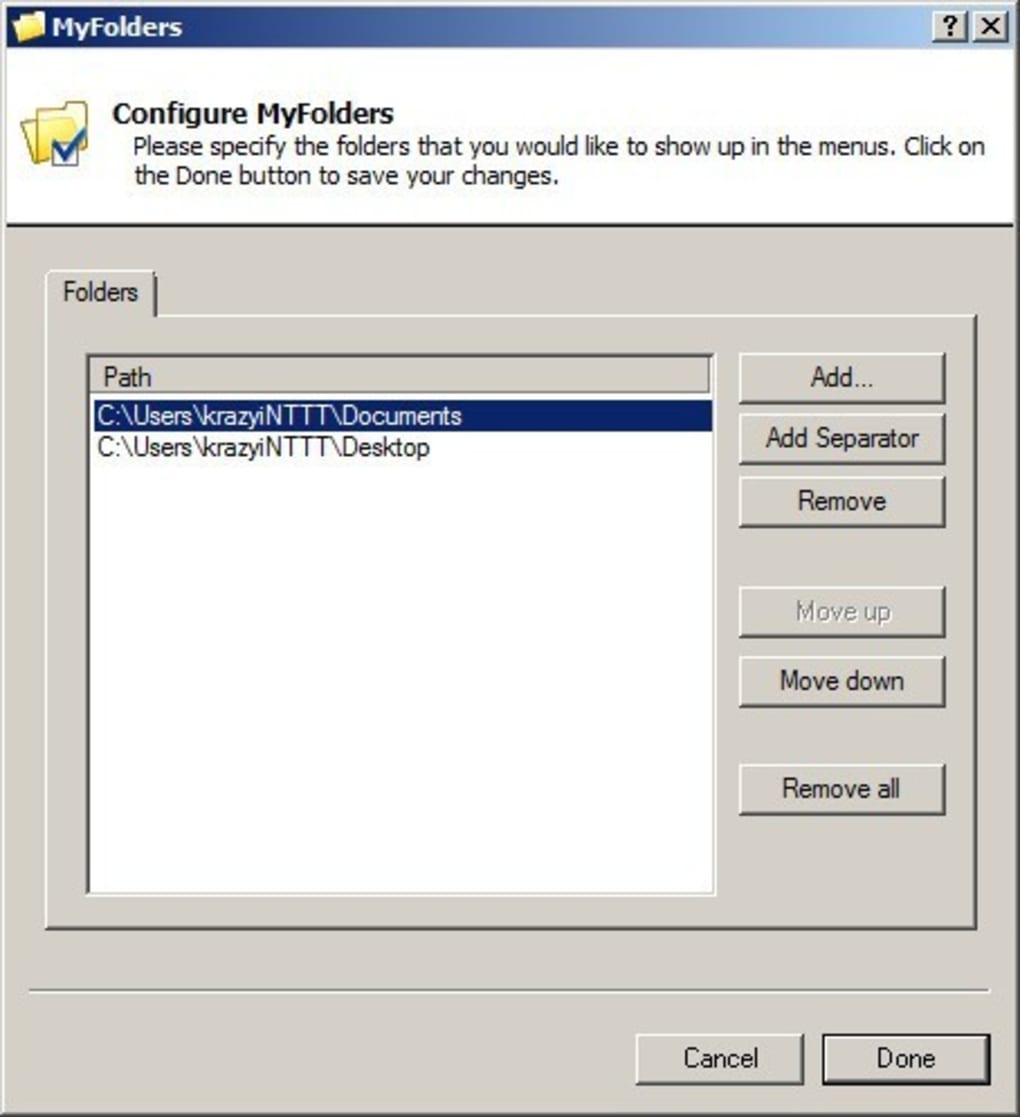
MyFolders brings a powerful yet minimalistic approach to file management, making it a must-have utility for anyone who frequently moves or copies files. One of its standout features is the ability to add custom folders directly to the right-click context menu. Once a folder is added via the settings panel—such as your Music, Documents, or Backup folders—it appears instantly in the "My Folders" submenu. This means you no longer need to open File Explorer, navigate through multiple directories, or manually copy-paste files. Just select your file, right-click, choose the target folder, and the transfer is complete in seconds.
Another major advantage is the tool’s lightweight nature. Unlike many third-party utilities that consume system resources or slow down your desktop, MyFolders runs efficiently in the background with minimal impact on performance. It doesn’t require administrator rights to install and doesn’t interfere with other software. The interface is clean and user-friendly, with a simple settings panel that allows you to manage your folder list easily. You can add, remove, or reorder folders based on your workflow preferences.
Additionally, MyFolders supports both copy and move operations, giving you flexibility depending on your needs. For instance, you can copy a project file to multiple destination folders for backup or sharing, or move a downloaded file directly into your organized folder structure. The tool also remembers your folder list across reboots, ensuring consistency in your daily tasks. With no ads, no tracking, and a completely free model, MyFolders delivers real value without hidden costs or privacy concerns.
How to Install and Use MyFolders on Windows
Installing MyFolders is a quick and hassle-free process, ideal for users of all technical levels. Begin by visiting the official download page and selecting the latest version of the software. The installer is a small executable file—typically under 2MB—ensuring fast download times even on slower connections. Once downloaded, simply run the installer and follow the on-screen prompts. The setup process takes less than a minute and doesn’t require any advanced configuration.
After installation, the "My Folders" option will appear in your right-click menu on the desktop. To begin using it, open the MyFolders settings panel—accessible from the system tray icon or via the Start menu. Here, you can add your most frequently used folders by clicking the “Add Folder” button and browsing to the desired directory. For example, if you regularly transfer photos from your Downloads folder to a dedicated "Photos" folder, simply add that path once, and it will be available in the context menu forever.
Once configured, using MyFolders is as simple as selecting a file, right-clicking, and choosing your target folder from the list. The tool supports both single and multiple file selections, making it efficient for batch operations. You can also customize the order of folders in the menu to prioritize your most-used locations. For added convenience, the tool automatically updates when you make changes to your folder structure, ensuring that the menu always reflects the latest paths.
Compatibility and System Requirements
MyFolders is specifically designed for the Windows operating system, ensuring full compatibility with all modern versions including Windows 10, Windows 11, and Windows Server editions. It does not support Mac, Android, or iOS platforms, so users on non-Windows systems will need to explore alternative tools. The software requires minimal system resources, running smoothly on machines with as little as 1GB of RAM and a 1GHz processor, making it suitable for both older and newer PCs.
There are no additional dependencies or runtime libraries required—everything is included in the installer. The tool operates in the background without consuming significant CPU or memory, so it won’t interfere with gaming, video editing, or other intensive tasks. It also integrates well with Windows’ built-in security features, including User Account Control (UAC), ensuring safe operation without compromising your system’s integrity.
For users concerned about privacy, MyFolders does not collect or transmit any personal data. All folder paths are stored locally on your machine, and no cloud synchronization is involved. This makes it a secure choice for handling sensitive documents, financial records, or private media. Whether you're a home user, a student, or a professional, MyFolders delivers reliable performance across a wide range of Windows environments.
Pros and Cons of MyFolders
- Pros:
- Free and completely ad-free
- Extremely lightweight—minimal system impact
- Simple, intuitive right-click integration
- Supports both copy and move operations
- Easy folder management via settings panel
- Secure and private—no data collection
- Fast and responsive, even with multiple folders
- Cons:
- Only available for Windows (no Mac or mobile support)
- Limited to desktop context menu (not available in File Explorer)
- No built-in search or filtering for folders
- Requires manual folder updates if paths change
- Lacks advanced features like automation or scripting
Frequently Asked Questions (FAQ)
- Is MyFolders safe to download and use?
Yes. MyFolders is a trusted, open-source tool that does not contain malware, ads, or tracking software. It is developed with user privacy in mind and does not access or transmit your files.
- Can I use MyFolders on Windows 11?
Yes. MyFolders is fully compatible with Windows 11 and works seamlessly with all standard desktop and file operations.
- How do I add a new folder to the MyFolders menu?
Go to the settings panel (accessible via the system tray icon or Start menu), click “Add Folder,” and browse to the desired directory. The folder will appear in your right-click menu immediately.
- Does MyFolders work with multiple files at once?
Yes. You can select multiple files, right-click, and choose a target folder from the MyFolders menu. The tool will move or copy all selected files to the chosen location in one action.
- What happens if I move or rename a folder that’s in MyFolders?
MyFolders will not automatically update the path. If the folder is moved or renamed, you’ll need to manually update the entry in the settings panel to avoid errors.
- Is there a portable version of MyFolders?
Not currently. The tool requires installation to integrate with the Windows right-click menu. However, the installer is small and quick to run.
Final Verdict: Why You Should Download MyFolders Today
For users seeking a no-frills, efficient way to manage files on Windows, MyFolders stands out as a reliable and secure solution. While it’s not a full-featured file manager, it fills a critical gap in everyday productivity by simplifying repetitive file transfers. Its minimal design, fast performance, and complete freedom from bloat make it perfect for both casual users and power users alike.
If you frequently organize files—whether for work, school, or personal projects—this tool can save you dozens of clicks every week. It’s especially beneficial for creatives, developers, and anyone managing large volumes of digital content. The fact that it’s free, secure, and easy to use makes it a standout choice in a crowded market of file utilities.
Download MyFolders today and experience faster, smarter file management. Transform your desktop workflow with a tool that’s simple, powerful, and built for real-world use.







